Nothing is more frustrating after a long travel day or a 10-hour remote sprint than sitting down in your hotel room, turning on the 55-inch display, and discovering that the hotel has locked down the television behind a crippled commercial interface:
- The standard "Input / Source" button on the remote is disabled or physically stripped out.
- The HDMI ports on the back are blocked by flush wall mounts or ignored by the software.
- You are bombarded with $24 pay-per-view movies and sluggish guest welcome carousels.
- And if you manage to plug in your Roku, Apple TV, Chromecast, or Amazon Fire Stick, the device gets trapped at the hotel captive Wi-Fi login screen because it lacks a built-in web browser to accept the terms of service.
As an Ambassador Elite traveler logging over 100 paid nights a year across Marriott, Westin, Sheraton, and Renaissance properties, I never watch hotel cable. I travel with my own streaming hardware and watch my own Plex library, YouTube TV, Netflix, Max, and live sports in pristine 4K.
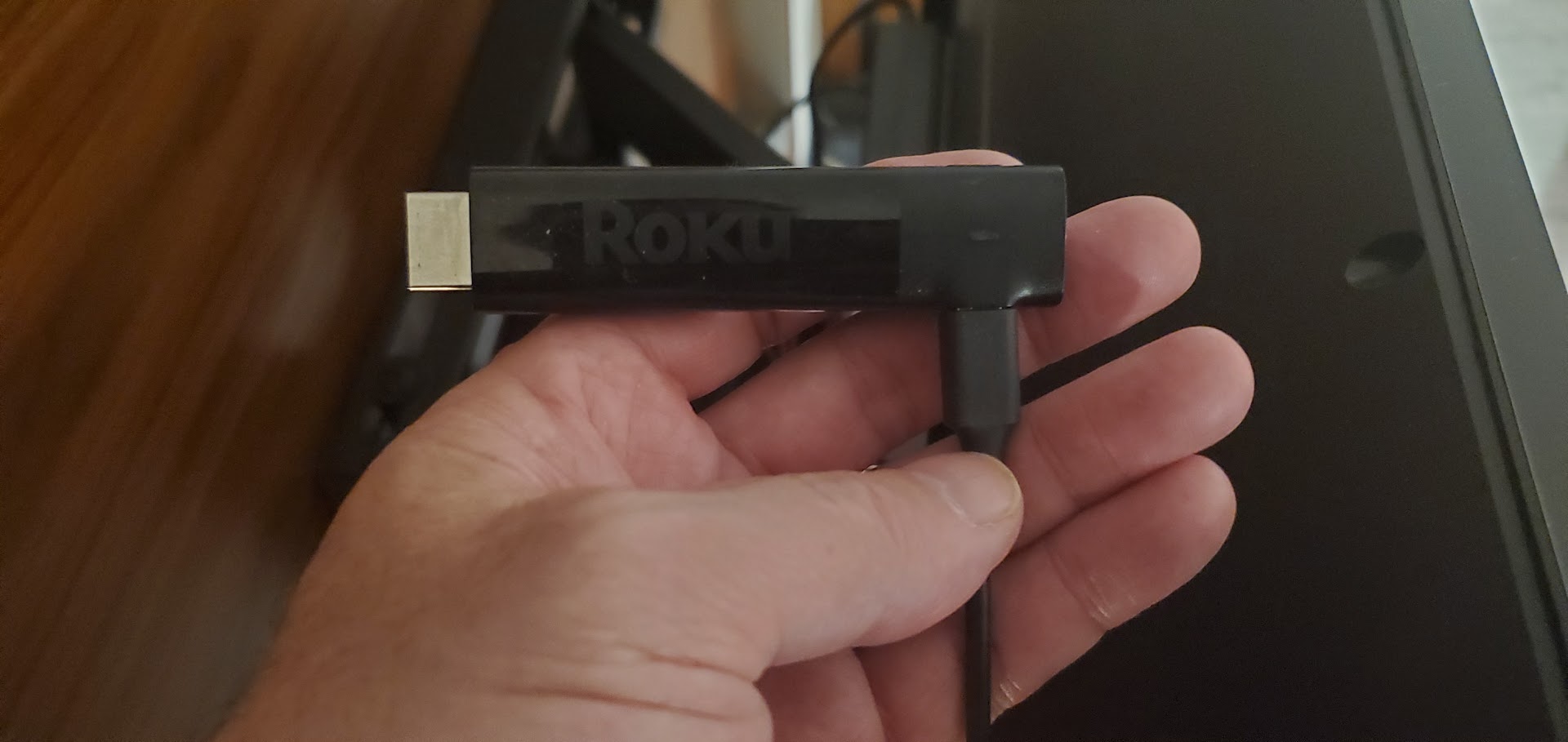 Field kit essential: A compact Roku Streaming Stick 4K paired with a right-angle power cable, built for quick hotel room deployment.
Here is the exact field engineering playbook to connect your personal streaming hardware, identify modern centralized media controllers, navigate property-specific Marriott TV menus, and stream your content cleanly in any hotel room.
Direct TV Ports vs. The Centralized Media Platform ("The Black Box")
As hotel properties renovate and update their guest rooms, the physical hardware layout behind the television is undergoing a massive shift:
- Older / Legacy Properties: In non-renovated rooms, you can often reach behind the television bezel and plug directly into an open secondary HDMI port on the physical television itself. However, these direct-connect TVs are becoming fewer and further between as properties modernize.
- Modern / Renovated Properties: The vast majority of updated hotels now deploy a centralized media platform. This is the dedicated black box mounted securely to the wall bracket behind the screen or housed inside the entertainment credenza.
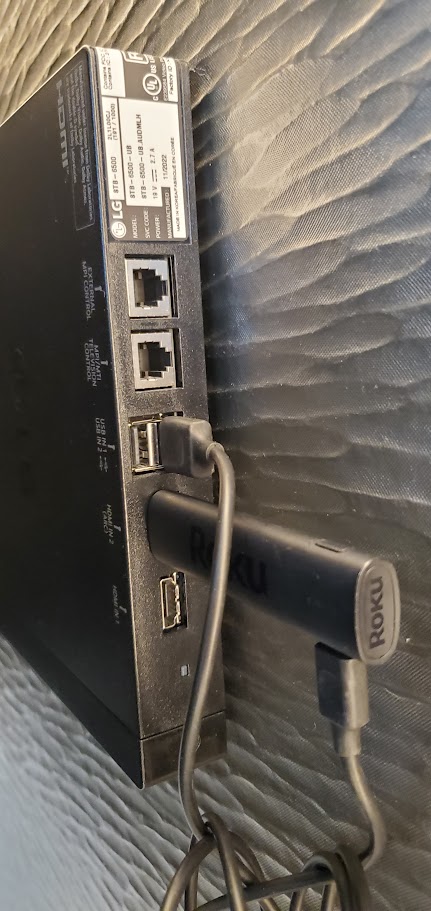 Firsthand hardware inspection: The commercial LG STB-6500 set-top box mounted behind a Marriott guest room TV. The Roku streaming stick is plugged directly into auxiliary HDMI IN 2 (ARC) with USB power drawn from USB IN 1, positioned alongside the external MPI/MTI telephone-style control jacks.
This centralized black box (such as the LG STB-6500 Pro:Centric Smart Box shown above) serves as the brain of the guest room entertainment system. It controls all media routing, interfaces with the property management system (PMS), manages the television through specialized MPI/MTI control cables, and delivers the hotel interactive channel guide.
The Golden Field Rule: When you see this centralized black box mounted behind the TV, do not waste time trying to access HDMI ports on the television bezel. On these installations, the TV native bezel inputs are typically disabled in the commercial firmware. Instead, plug your streaming stick directly into the auxiliary HDMI IN 2 or HDMI IN 1 port on the side of the centralized black box.
Navigating Marriott Hotel TV Menus: The 4 Interface Variations
Once your streaming stick is physically plugged into the centralized media box, you need to switch the display over to your HDMI input.
Getting to the input selection menu varies significantly by hotel property. Marriott does not run a single monolithic TV firmware across all 30+ brands; each individual hotel property subscribes to a specific hospitality entertainment package and software tier licensed from Marriott Corporate.
Across hundreds of audited stays, there are generally 3 to 4 distinct menu paths to access your HDMI input:
Path 1: The Modern Marriott Bonvoy Interactive OS ("Connect My Device")
On the latest generation of Marriott hospitality software, the input switcher is integrated directly into the guest menu:
- Turn on the TV and press Menu or Home on the hotel remote.
- Scroll down the left sidebar to Settings (or Interactive Services).
- Select Connect My Device.
- Highlight and click HDMI Direct Connect.
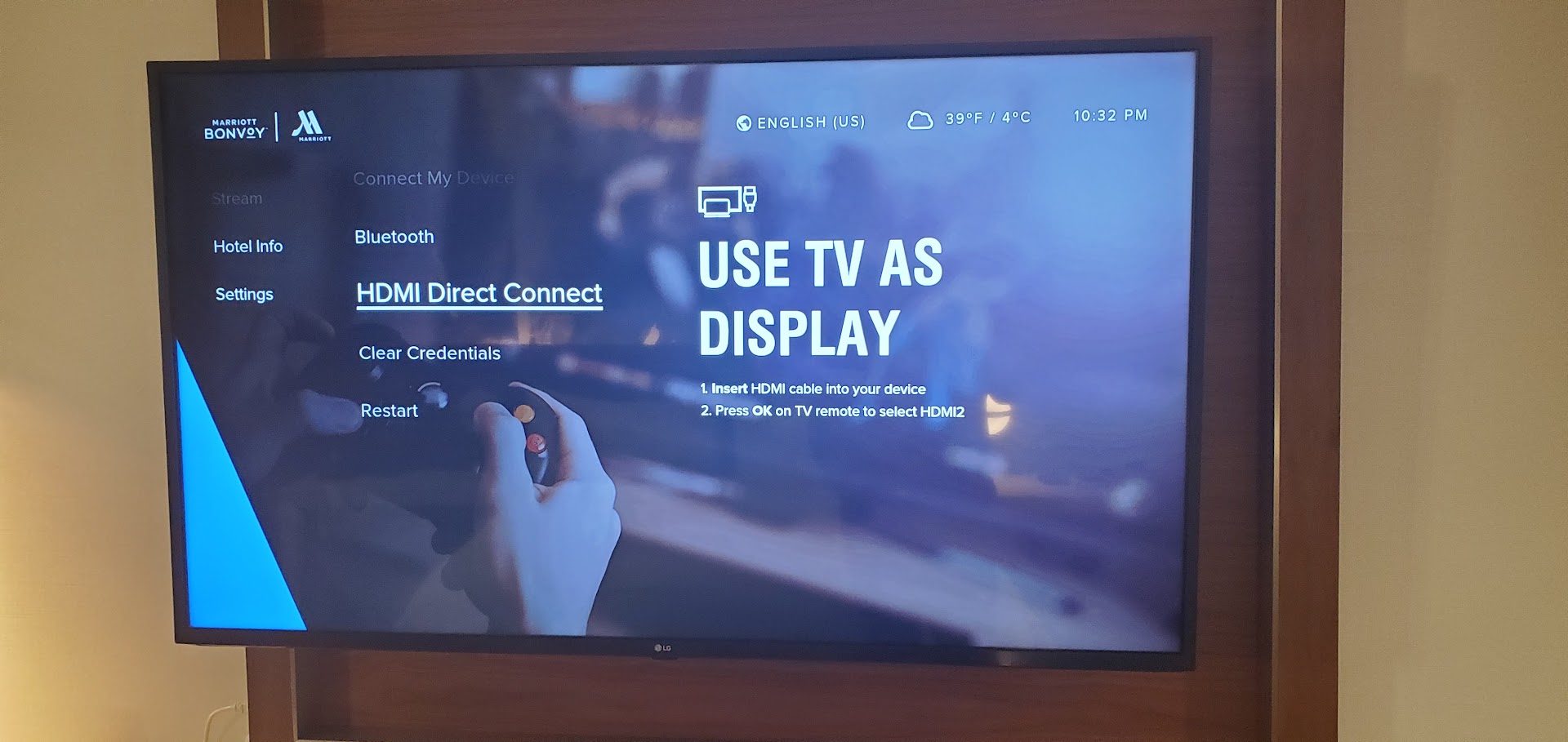 The Marriott Bonvoy interactive display menu: Navigating to Settings > Connect My Device > HDMI Direct Connect reveals the 'USE TV AS DISPLAY' prompt, directing guests to press OK on the remote to select HDMI2.
- The on-screen interface displays: "USE TV AS DISPLAY — 1. Insert HDMI cable into your device, 2. Press OK on TV remote to select HDMI2."
- Press OK on the remote, and the display instantly switches to your streaming device.
Path 2: The "Cast & Stream / Personal Media" Hub
On many updated Courtyard, SpringHill Suites, and AC Hotel properties, the input switch is located under the entertainment categories:
- On the main home screen, navigate to the Stream or Personal Media tile (where pre-loaded apps like Netflix and YouTube appear).
- Alongside the app icons, look for a tile labeled External HDMI, Cast / Connect, or Auxiliary Display / Laptop.
- Selecting this tile commands the centralized media box to switch its internal matrix over to the secondary HDMI feed.
Path 3: The Dedicated Remote "Input / Source" Key with On-Screen Drawer
On newer rubberized hospitality remotes that retain an Input or Source key:
- Press the Input button once.
- Rather than a standard consumer TV input banner, a branded Marriott overlay drawer slides in from the bottom or side of the screen.
- Use the arrow keys to move from
Hotel TV / CabletoHDMI 2 (Auxiliary)and press Select.
Path 4: Deep Settings / Help & Diagnostics Menu
On certain custom enterprise deployments (common at convention-center hotels and older luxury resorts):
- Navigate to Hotel Info & Services -> Guest Technology / Workstation Support.
- Or open Settings -> Display Configuration / Audio-Visual.
- Look for Video Input Source or PC / Console Mode.
Ambassador Pro-Tip: Because each hotel selects which specific menu package they license from Marriott, take 30 seconds when you enter the room to explore the top-level menu categories (Stream, Hotel Info, Settings). You will quickly identify how that specific property organizes its input routing.
Power Architecture: USB Port Limits vs. Dedicated Wall AC Power
One of the most common mistakes travelers make is attempting to power their streaming stick from the TV or media box USB port.
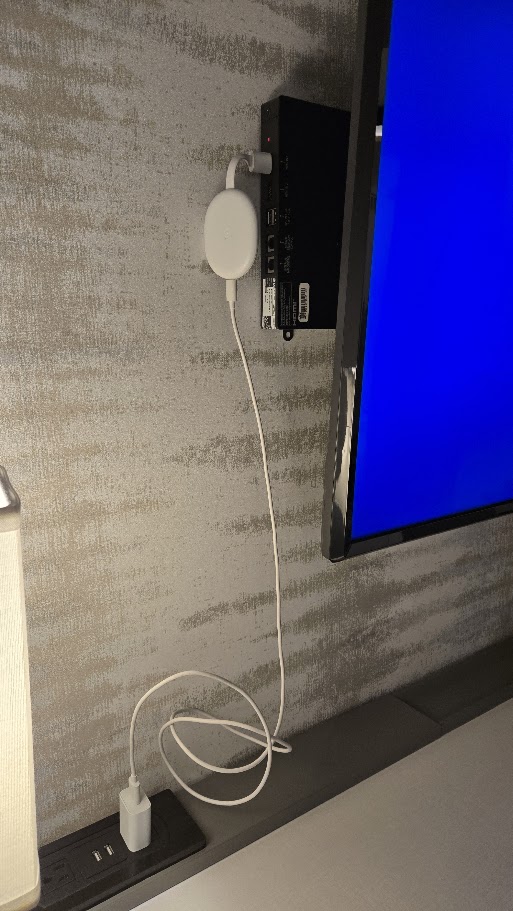 Field deployment reality: A modern Chromecast with Google TV plugged into the centralized hotel media box behind the TV, powered by a dedicated white AC wall adapter plugged directly into the desk outlet. Never rely on the TV's USB port for power-demanding 4K devices.
Understanding the power requirements of your hardware is critical:
- Lighter Streaming Sticks (Roku Streaming Stick 4K): As shown in our field photo of the LG STB-6500 box, compact Roku sticks can frequently run off the box auxiliary
USB IN 1port (5V / 500mA–1A) for standard playback. - Demanding 4K Hardware (Chromecast with Google TV, Apple TV 4K, Fire TV Stick 4K Max): Modern 4K HDR streaming sticks draw between 1.5 Amps and 2.0 Amps. When connected to a weak 500mA USB service port, they will enter an infinite boot loop, crash during 4K video decoding, or suffer intermittent Wi-Fi disconnects.
Always carry a dedicated 20W GaN USB-C wall power cube with a 6-foot cable. In our field deployment above, the Chromecast is plugged into the wall-mounted black box, while the white power cable drops down cleanly to the desk power strip. This guarantees flawless 4K 60fps streaming without thermal throttling or brownouts.
Conquering the Captive Portal on Hotel Wi-Fi
Once your streaming stick is displayed on screen, you must get it through the hotel captive Wi-Fi login screen. Streaming sticks do not have standard desktop browsers or mouse cursors, but there are two proven ways to get them authenticated:
Method A: The Sovereign Travel Router (The Best Strategy)
If you travel with a portable router (such as the GL.iNet Beryl AX or Slate AX):
- Connect your travel router to the hotel Wi-Fi (
MarriottBonvoy) using your laptop or smartphone, and complete the room number/last name login. - Because your travel router broadcasts your private home Wi-Fi network, your streaming stick connects instantly with zero captive portal prompts.
- All streaming traffic is routed through your private WireGuard VPN, bypassing hotel bandwidth limits and ISP throttling.
(Read our complete guide: How to Use a Portable Travel Router for Hotel Wi-Fi & WireGuard Security).
Method B: Roku Built-In "Hotel & Dorm Connect"
If you travel with a standalone Roku without a router, Roku includes a built-in captive portal bypass:
- Navigate to Settings -> Network -> Set up connection -> Wireless.
- Select the open MarriottBonvoy network.
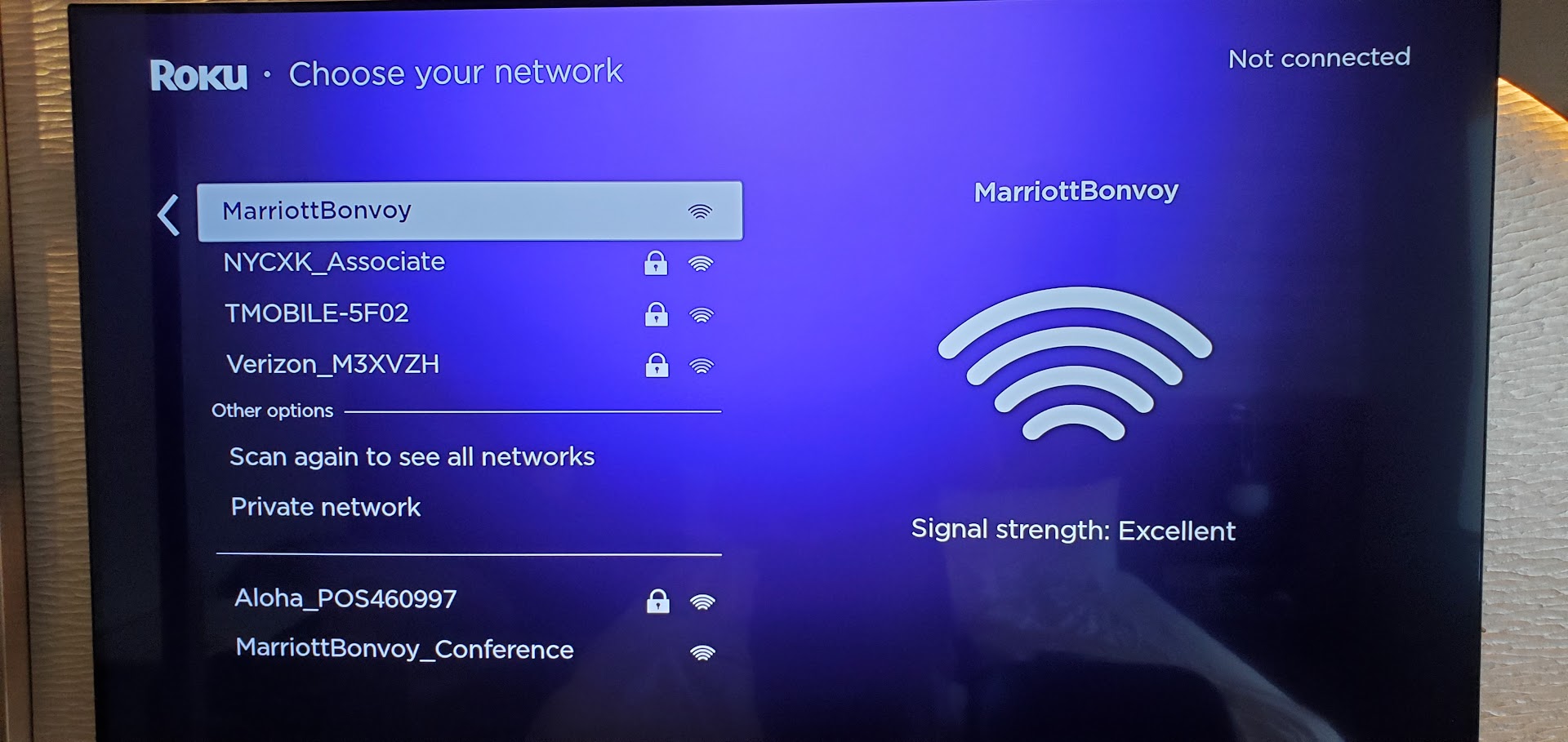 Selecting the open MarriottBonvoy network on the Roku initial setup screen with excellent signal strength.
- When Roku detects the captive portal, an on-screen prompt appears: "Are you at a hotel or college dorm?" Select Yes.
- The Roku creates a temporary direct Wi-Fi network and displays connection instructions on the TV.
- On your smartphone, connect to the temporary Roku Wi-Fi network. A browser window immediately launches on your phone showing the hotel login page.
- Enter your room number and last name on your phone and accept the terms.
- The hotel gateway registers the Roku hardware MAC address, and the Roku screen confirms both wireless and internet connectivity:
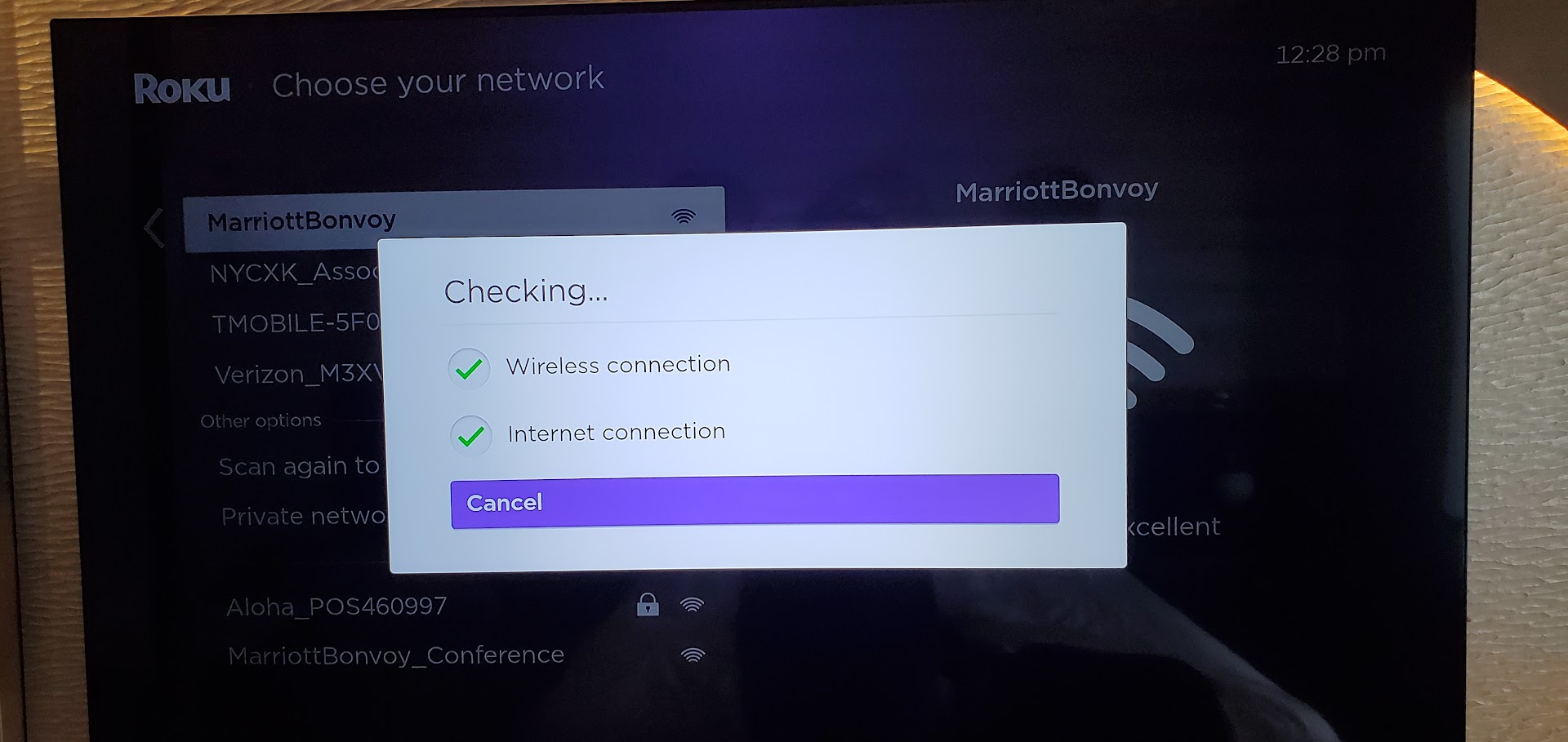 Roku on-screen confirmation verifying active wireless connection and internet connection through the authenticated Marriott gateway.
- The screen immediately transitions to your personal streaming home page:
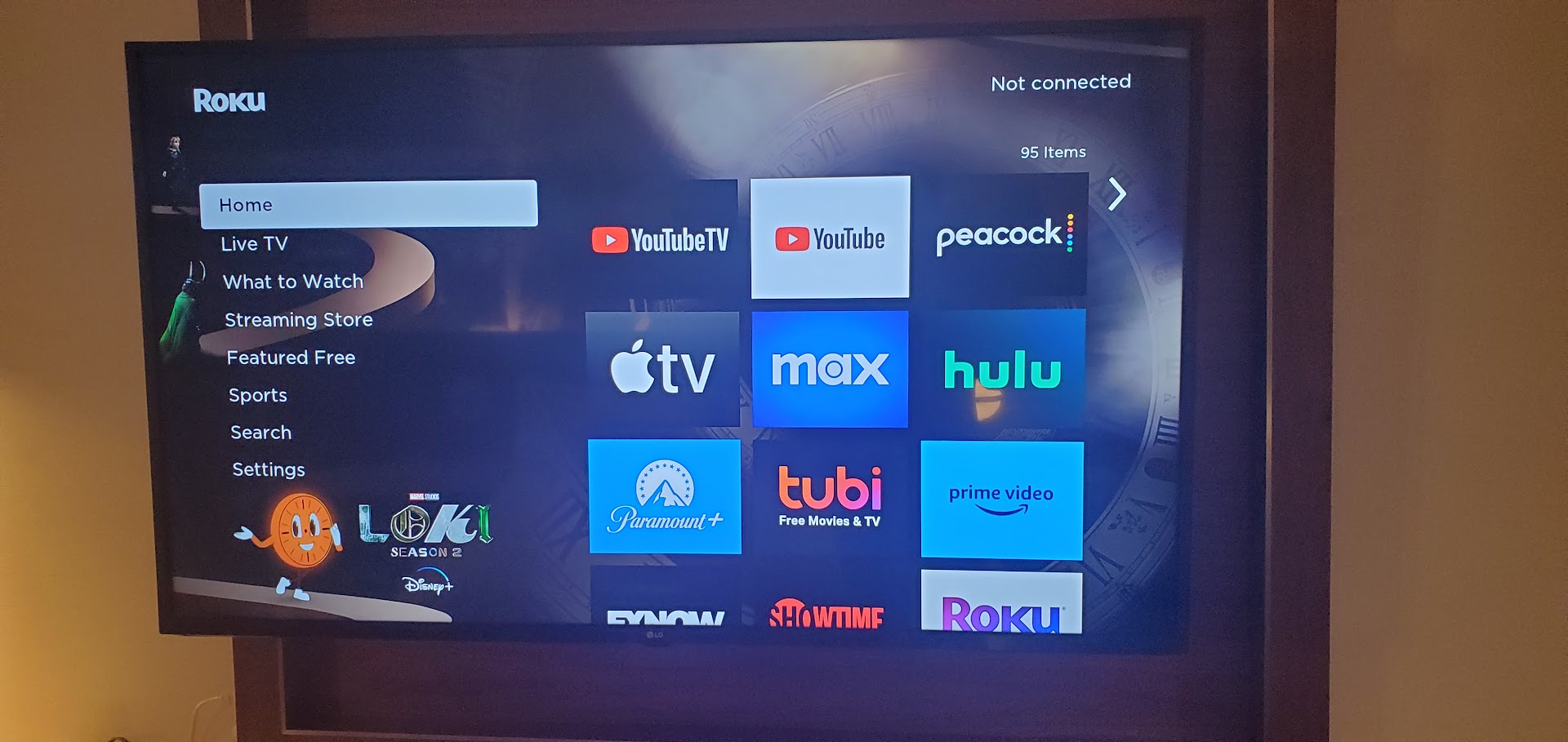 Mission complete: Personal Roku interface running smoothly on the in-room Marriott LG display, providing full 4K access to YouTube TV, Max, Peacock, Hulu, and custom streaming apps.
The Hardware Bypass: Disconnecting the MPI / MTI Control Cable
If you encounter an older commercial installation where the hotel software has completely locked out all menu inputs, you can perform the physical data cable bypass:
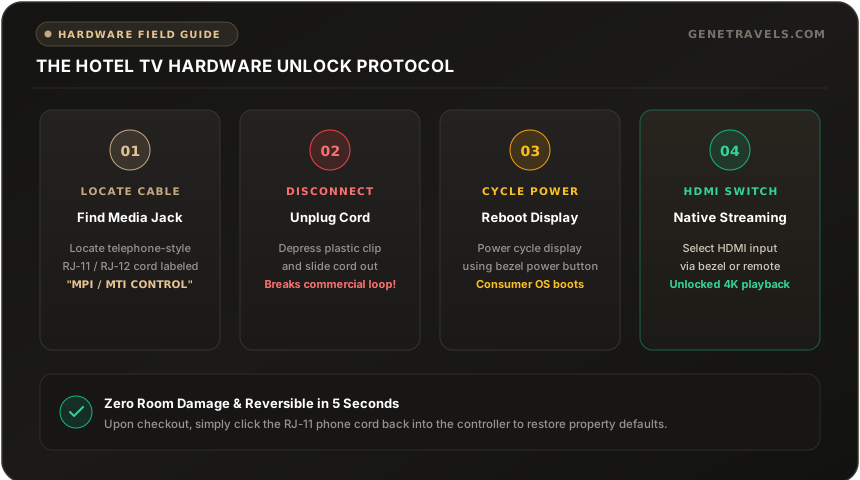
- Look at the ports on the LG STB-6500 commercial box (clearly visible in our hardware photograph). Notice the two modular telephone jacks labeled EXTERNAL MPI CONTROL and MPI/MTI TELEVISION CONTROL.
- These cables transmit serial commands from the hotel management system to enforce commercial locks and disable consumer remote commands.
- By gently depressing the clip and disconnecting the MPI cable, you sever the commercial control loop.
- Power cycle the TV. Without the box asserting control over the TV serial bus, the display reverts to consumer behavior, allowing direct HDMI switching through the bezel toggle or a pocket universal remote.
- The Road Warrior Ethics Mandate: Always plug this control cable back in before checking out of your room so the housekeeping and front office teams have an operational television for the next guest.
Essential Travel Streaming Kit Checklist
Here is the exact tech pouch kit I travel with across 100+ nights annually:
- Roku Streaming Stick 4K or Chromecast with Google TV (4K): Compact, responsive, and includes physical volume and power controls.
- Compact 6-Inch Flexible HDMI Extender: Crucial when the black box or TV HDMI port has tight clearance against the wall mount bracket.
- 20W GaN Wall Charger & 6-Foot USB-C Cable: Prevents brownouts and boot loops on high-power 4K dongles.
- GL.iNet Beryl AX (GL-MT3000) Travel Router: Connects once, protects every device behind WireGuard VPN, and bypasses captive portals automatically.
- $8 Pocket Universal Remote: A compact fallback that transmits discrete IR codes for "HDMI 1" and "HDMI 2" when bezel buttons are inaccessible.
With this kit deployed, you will never be trapped watching overpriced hotel pay-per-view or cable news again.